Tuesday, September 17, 2019

Save and Load Binary Files in HTML5

In this example, we firstly draw something (shapes & lines) on the canvas, convert it into a bitmap (pixel data) and save the pixel values as a binary file.

//Draw something
ctx.fillStyle = "red";
ctx.fillRect(0, 0, 60, 60);
ctx.beginPath();
ctx.rect(60, 60, 160, 80);
ctx.fillStyle = "blue";
ctx.fill();
ctx.beginPath();
ctx.lineWidth = "5";
ctx.strokeStyle = "green";
ctx.moveTo(6, 160);
ctx.lineTo(240, 360);
ctx.lineTo(60, 800);
ctx.lineTo(800, 60);
ctx.stroke();//draw
//Convert canvas draws into pixels
var buffer = ctx.getImageData(0, 0, w, h);

//https://stackoverflow.com/questions/23451726/saving-binary-data-as-file-using-javascript-from-a-browser
var saveByteArray = (function () {
    var a = document.createElement("a");
    document.body.appendChild(a);
    a.style = "display: none";
    return function (data, name) {
        var blob = new Blob(data, {type: "octet/stream"}),
            url = window.URL.createObjectURL(blob);
        a.href = url;
        a.download = name;
        a.click();
        window.URL.revokeObjectURL(url);
    };
}());
//Save pixel data (ArrayBuffer) as binary file
saveByteArray([buffer.data], 'example.bf');

Then we load the binary file and display the pixel values it stores (as a bitmap) using a new canvas.
//The requestAnimFrame fallback for better and smoother animation
var buffer = ctx.createImageData(w, h);

//http://qnimate.com/an-introduction-to-javascript-blobs-and-file-interface/
var xhr = new XMLHttpRequest(); 
xhr.open("GET", "./example.bf"); 
//although we can get the remote data directly into an arraybuffer using the string "arraybuffer" assigned to responseType property. For the sake of example we are putting it into a blob and then copying the blob data into an arraybuffer.
xhr.responseType = "blob";

function analyze_data(blob)
{
    var myReader = new FileReader();
    myReader.readAsArrayBuffer(blob);
    
    myReader.addEventListener("loadend", function(e)
    {
        var buf = e.srcElement.result;//arraybuffer object
        var buf8 = new Uint8ClampedArray(buf);//first view for copy pixel data to ImageData
        var data = new Uint32Array(buf);//second view for setting pixel values
        buffer.data.set(buf8);
        //we use putImageData() to copy the image data back to the canvas.
        ctx.putImageData(buffer, 0, 0);
    });
}

xhr.onload = function() 
{
    analyze_data(xhr.response);
}
xhr.send();

Demo & Full Source Code: Create & Save, Load & Show

Monday, September 9, 2019

Fast per pixel bitmap animation in HTML5

According to this tutorial (Faster Canvas Pixel Manipulation with Typed Arrays), we can make the code in my last post (per pixel bitmap animation in HTML5/JavaScript) faster using Typed Arrays:

//The requestAnimFrame fallback for better and smoother animation
window.requestAnimFrame = (function () {
    return window.requestAnimationFrame || window.webkitRequestAnimationFrame || 
 window.mozRequestAnimationFrame || window.oRequestAnimationFrame || 
 window.msRequestAnimationFrame || function (callback) {
        window.setTimeout(callback, 1000 / 60);
    };
})();

//Prepare our canvas
var canvas = document.querySelector('#render');
var w = window.innerWidth;
var h = window.innerHeight;
canvas.width = w;
canvas.height = h;
var ctx = canvas.getContext('2d');

var time = Date.now();//record initial time
var buffer = ctx.createImageData(w, h);//The back buffer we used to paint the result into the canvas
//The main render function
//Calculate a color value from elapsed time and [x,y] coordinates (scaled to [0,1])
function render(time, fragcoord) {
    /* put the GLSL fragment shader's JavaScript equivalent here. */
    //begin of per pixel bitmap manipulation
    var x = fragcoord[0]; var y = fragcoord[1];
    var red = x;
    var green = y;
    var blue = 1/(1+time);
    var alpha = 1;
    //end of per pixel bitmap manipulation
    return [red,green,blue,alpha]; //the final color value (scaled to [0,1])
};
var buf;
function animate() {
    var delta = (Date.now() - time) / 1000;
    buffer = ctx.createImageData(w, h);
    //
    /*
    Next we create two ArrayBuffer views. 
    One that allows us to view buf as a one-dimensional array of unsigned 8-bit values 
    and another that allows us to view buf as a one-dimensional array of unsigned 32-bit values.
    */
    buf = new ArrayBuffer(buffer.data.length);
    var buf8 = new Uint8ClampedArray(buf);//first view for copy pixel data to ImageData
    var data = new Uint32Array(buf);//second view for setting pixel values
    //
    ctx.clearRect(0, 0, w, h);
    for (var x = 0; x < w; x++) {
        for (var y = 0; y < h; y++) {
            var ret = render(delta, [x/w, y/h]);
            //var i = (y * buffer.width + x) * 4;
            //buffer.data[i] = ret[0] * 255;//red
            //buffer.data[i + 1] = ret[1] * 255;//green
            //buffer.data[i + 2] = ret[2] * 255;//blue
            //buffer.data[i + 3] = ret[3] * 255;//alpha  
            data[y * w + x] =
            (ret[3]*255 << 24) | // alpha
            (ret[2]*255 << 16) | // blue
            (ret[1]*255 <<  8) | // green
             ret[0]*255;  // red
        }
    }
    /*
    now assign the contents of the ArrayBuffer buf to imageData.data. 
    We use the Uint8ClampedArray.set() method to set the data property 
    to the Uint8ClampedArray view of our ArrayBuffer by specifying buf8 as the parameter.
    */
    buffer.data.set(buf8);
    //Finally, we use putImageData() to copy the image data back to the canvas.
    ctx.putImageData(buffer, 0, 0);
    requestAnimFrame(animate);
};

window.onresize = function () {
    w = window.innerWidth;
    h = window.innerHeight;
    canvas.width = w;
    canvas.height = h;
};

animate();

Demo & Full Source Code: http://vvv.flaswf.tk/demo/?url=HTML5Pixelsfast

The difference: Here we use an ArrayBuffer "buf" to hold the ImageData "buffer", and create two ArrayBuffer views of "buf"; one as an array of unsigned 8-bit values for using "putImageData()" function to copy the image data back to the canvas, and the other one as unsigned 32-bit values for setting pixel values (just like in AS3, allowing you to use only one, instead of four, array assignment to set a pixel's value).

Sunday, August 25, 2019

Per pixel bitmap animation in HTML5/JavaScript

LICSON showed how to simulate GLSL shader effects on HTML5 Canvas using pure JavaScript:

//The requestAnimFrame fallback for better and smoother animation
window.requestAnimFrame = (function () {
    return window.requestAnimationFrame || window.webkitRequestAnimationFrame || 
 window.mozRequestAnimationFrame || window.oRequestAnimationFrame || 
 window.msRequestAnimationFrame || function (callback) {
        window.setTimeout(callback, 1000 / 60);
    };
})();

//Prepare our canvas
var canvas = document.querySelector('#render');
var w = window.innerWidth;
var h = window.innerHeight;
canvas.width = w;
canvas.height = h;
var ctx = canvas.getContext('2d');

var time = Date.now();//record initial time
var buffer = ctx.createImageData(w, h);//The back buffer we used to paint the result into the canvas

//The main render function
//Calculate a color value from elapsed time and [x,y] coordinates (scaled to [0,1])
function render(time, fragcoord) {
    /* put the GLSL fragment shader's JavaScript equivalent here. */
    //begin of per pixel bitmap manipulation
    var x = fragcoord[0]; var y = fragcoord[1];
    var red = x;
    var green = y;
    var blue = 1/(1+time);
    var alpha = 1;
    //end of per pixel bitmap manipulation
    return [red,green,blue,alpha]; //the final color value (scaled to [0,1])
};

function animate() {
    var delta = (Date.now() - time) / 1000;
    buffer = ctx.createImageData(w, h);
    ctx.clearRect(0, 0, w, h);
    for (var x = 0; x < w; x++) {
        for (var y = 0; y < h; y++) {
            var ret = render(delta, [x/w, y/h]);
            var i = (y * buffer.width + x) * 4;
            buffer.data[i] = ret[0] * 255;//red
            buffer.data[i + 1] = ret[1] * 255;//green
            buffer.data[i + 2] = ret[2] * 255;//blue
            buffer.data[i + 3] = ret[3] * 255;//alpha
        }
    }
    ctx.putImageData(buffer, 0, 0);
    requestAnimFrame(animate);
};

window.onresize = function () {
    w = window.innerWidth;
    h = window.innerHeight;
    canvas.width = w;
    canvas.height = h;
};

animate();

Demo & Full Source Code: http://vvv.flaswf.tk/demo/?url=HTML5Pixels

The difference: In AS3/Haxe, a color value is represented by a single Unsigned Int value (0xAARRGGBB). In HTML5, the color data (BitmapData) array stores a whole color value as four neighboring elements (integer between 0 and 255), representing the red, green, blue and alpha values, respectively. To get/set the color value at coordinate (x,y), you should go to index "i=(y*buffer.width+x)*4", then the red, green, blue and alpha values are respectively "buffer.data[i], buffer.data[i+1], buffer.data[i+2], buffer.data[i+3]".

Links:
https://licson.net/post/glsl-fragment-shaders-in-javascript/
https://developer.mozilla.org/en-US/docs/Web/API/Canvas_API/Tutorial/Pixel_manipulation_with_canvas
https://bruce-lab.blogspot.com/2019/02/four-ways-for-per-pixel-bitmap.html
Faster Canvas Pixel Manipulation with Typed Arrays
References:
HTML5 Canvas: Native Interactivity and Animation for the Web, see Animation Loop (P.27), Pixel Manipulation (P.170).
Foundation HTML5 Animation with JavaScript, see Animation loops (P.16), Pixel manipulation (P.94).
HTML5 Game Development Insights, see High-Performance Update Loops (P.106), A Bitmap API Example (P.246).
https://developer.mozilla.org/en-US/docs/Web/API/window/requestAnimationFrame
https://developer.mozilla.org/en-US/docs/Web/API/CanvasRenderingContext2D/putImageData
https://www.w3schools.com/js/js_htmldom_animate.asp
https://www.w3schools.com/tags/canvas_putimagedata.asp

Friday, February 8, 2019

Four ways for per pixel bitmap manipulation in OpenFL

A BitmapData can be seen as an array of length width*height, holding unsigned int colors values. There are at least four ways to manipulate pixels of a bitmap image(Bitmap/BitmapData) in OpenFL. The first way is using setPixel() or setPixel32() function:

var myBitmapData:BitmapData = new BitmapData(800, 600, true, 0);
myBitmapData.lock();
for (j in 0...600)
    {
    for (i in 0...200)
        {
         myBitmapData.setPixel32(i, j, (i % 255) << 24 | 0x0000ff);
        }
    }
myBitmapData.unlock();
You can use lock() and unlock() function before and after multiple calls of setPixel() function, so the BitmapData will only be updated on Screen after unlock(). The second way is using setVector() function, and a Vector of UInt to hold pixel values:
var myVector:Vector = new Vector(200 * 600, true);
for (j in 0...600)
    {
    for (i in 0...200)
        {
        myVector[j * 200 + i] = (i % 255) << 24 | 0x0000ff;
        }
    }
var myRect2:Rectangle = new Rectangle(200, 0, 200, 600);
myBitmapData.setVector(myRect2,myVector);
The third way is using setPixels() function, and a ByteArray to hold pixel values:
var myByteArray:ByteArray = new ByteArray(200 * 600 * 4);
for (j in 0...600)
   {
   for (i in 0...200)
       {
       //myByteArray.position = (j * 200 + i) * 4;
       myByteArray.writeUnsignedInt((i % 255) << 24 | 0x0000ff);
       }
   }
var myRect4:Rectangle = new Rectangle(400, 0, 200, 600);
myByteArray.position = 0;
myBitmapData.setPixels(myRect4,myByteArray);
Remember to set the position of the ByteArray to 0 before calling setPixels(). The position "(j * width + i) * 4" of the ByteArray is associated with the pixel at (x=i,y=j) in the BitmapData. There is no need to set the position of the ByteArray to "(j * 200 + i) * 4" above since in the double for loops the "writeUnsignedInt()" function will update the position automatically. The fourth way is using the Memoery API, which is similar to the third way. See https://bruce-lab.blogspot.com/2013/03/fast-way-for-per-pixel-bitmap.html for more details.
var myMem:ByteArray = new ByteArray(200 * 600 * 4);
Memory.select(myMem);
for (j in 0...600)
    {
    for (i in 0...200)
        {
        Memory.setI32((j * 200 + i) * 4, (i % 255) << 24 | 0x0000ff);
        }
    }
var myRect4:Rectangle = new Rectangle(600, 0, 200, 600);
myMem.position = 0;
myBitmapData.setPixels(myRect4,myMem);
The full source code: See the result here (HTML5): http://vvv.flaswf.tk/demo/?url=BitmapDataPixel

Saturday, January 27, 2018

Saturday, November 18, 2017

Deploy ZeroNet to Heroku as a Public or Private ZeroNet Proxy Service

Note: due to formatting issues, some bash commands below have incomplete display. Just copy and paste the bash code block somewhere for the complete commands.
Deploy ZeroNet to Heroku as a Public or Private ZeroNet Proxy Service

Introduction

This is a tutorial on deploying ZeroNet to Heroku as a Python web app. You can host a (1) public or (2) private ZeroNet proxy, or only host (3) your personal zsites (ZeroNet site) statically (with all your zsite contents there) or dynamically (as an open gate to the clearnet and fetch your zsite contents from the zero network) on Heroku. An example zsite hosted on Heroku:
https://dcentral.herokuapp.com

Things are much easier if you have a VPS and wish to host ZeroNet on it, please check the following two video tutorials:
How to Create a Private ZeroNet Proxy (for Phones, only for yourself)
How to Create a ZeroNet Public Proxy for Everyone to Use
However, VPS will cost you some money. On the other hand, you can deploy and use ZeroNet on Heroku for free, although with some limitations.

Limitations

  • No persistent storage with Heroku dynos.
    • If you host a (1) public or (2) private ZeroNet proxy, your user data will not be saved on Heroku. For example, if you visit your proxy and subscribed some new sites, and next time you visit the proxy again, all subscriptions will disappear and it is like a fresh new deployment. The reason is data/zsites downloaded on Heroku are on a temporary space and will be erased whenever a session ends (e.g., when your dyno sleeps and restarts, at most every 24 hours).
    • If you want to host (3) your personal zsites statically, you need to deploy every change of your zsite (e.g., after you published a new post) to Heroku. Otherwise, it is equivalent to host it dynamically because user interactions through the ZeroNet UI will not be saved, and the Heroku copy of your zsite files is always the same as your last deployment, which can be older than the latest copy in the zero network. Although it will update automatically and fetch your latest zsite contents from the zero network whenever you visit your zsite hosted on Heroku, the updates can not be saved for your next visit, which means it has to download even the same updates from the zero network next time — in other words, it is like to host your zsite dynamically.
  • Heroku does not allow opening ports or use multiple ports. By default, ZeroNet use the port 43110 to serve the web UI, and also want the port 15441 for peer communication, although the second port is optional. However, Heroku only allows you to use one port, so we have to use the only one for ZeroNet web UI. Without a port for peer communication means we have to run ZeroNet in slow mode and creating new sites or publishing new contents may not work well (but you can do that locally).
  • The free dyno of Heroku has some quota limitations: https://devcenter.heroku.com/articles/free-dyno-hours

Tips: If you want to host a public ZeroNet proxy without any restriction on users, you can do it in just one-click by using the Heroku deployment button in this repository:
https://github.com/BruceJawn/HeroNet
And if you want to host a private ZeroNet proxy for yourself, try this repository:
https://github.com/BruceJawn/ZeroNet-private-proxy
Otherwise, you should read the following contents.

Assume you’re with Ubuntu/Linux. If you’re using Mac or Windows, it’s better to use VirtualBox with a pre-installed Ubuntu desktop image http://www.osboxes.org/ubuntu/ to save time.

Step 1. Register a Heroku account.

Register your account here: https://signup.heroku.com/signup/dc

Step 2. Install Python 2. (Optional)

Python version 2.X (instead of Python 3.X) is needed for testing and using ZeroNet locally. If you only want to host a (2) private ZeroNet proxy, you can skip this step. If you want to host a (1) public ZeroNet proxy without a zsites whitelist so any user can visit any zsite through your proxy, you can also skip this step. But if you want to host a (1) public ZeroNet proxy and only allow users to visit some whitelisted zsites (disallow users to add new sites), or host (3) your personal zsites, you must be able to run ZeroNet locally.

Ubuntu should have Python 2 installed by default, you can check it by:

python2 --version

If not, to install Python 2.X, you can refer to http://docs.python-guide.org/en/latest/starting/install/linux/

Step 3. Install Git.

sudo apt-get update
sudo apt-get install git

Step 4. Install Heroku CLI.

# Run this from your terminal.
# The following will add our apt repository and install the CLI:
sudo add-apt-repository "deb https://cli-assets.heroku.com/branches/stable/apt ./"
curl -L https://cli-assets.heroku.com/apt/release.key | sudo apt-key add -
sudo apt-get update
sudo apt-get install heroku

Now login Heroku,

heroku login

then input your registered email and password for Heroku.

Step 5. Prepare the ZeroNet app.

Firstly, clone the ZeroNet source code:

git clone https://github.com/HelloZeroNet/ZeroNet.git
cd ZeroNet

Now, add the Python runtime requirement file for Heroku:

cat > runtime.txt << EOF
python-2.7.14
EOF

Alternatively, manually create a file named “runtime.txt” in the folder “ZeroNet”, with the following content

python-2.7.14

Now go to Step 6 if you want to host a (1) public ZeroNet proxy.
Or go to Step 7 if you want to host a (2) private ZeroNet proxy.

Step 6. This step is for hosing a (1) public ZeroNet proxy.

If you want to disallow users to add new sites to your proxy, go to Step 6.1.
If you want to allow users to access any zsite, go to Step 6.2 directly.

Step 6.1.

Run ZeroNet locally, and visit all the zsites you want to be whitelisted for your users.

sudo apt-get update
sudo apt-get install msgpack-python python-gevent
python2 zeronet.py

Open http://127.0.0.1:43110/ in your browser to visit zsites.

You now can delete the file “GeoLite2-City.mmdb” in the “ZeroNet/data” folder to save space for deployment. The file “users.json” in the “ZeroNet/data” folder contains a “master_seed” and a list of zsites you just visited/subscribed. You can login using the “master_seed” as the administrator later to add and delete subscribed sites through the ZeroNet UI in multi-user mode. Make sure your “ZeroNet/data” folder contains a complete copy of the default homepage site “1HeLLo4uzjaLetFx6NH3PMwFP3qbRbTf3D” in the folder “ZeroNet/data/1HeLLo4uzjaLetFx6NH3PMwFP3qbRbTf3D”.

Now enable git to include files in “ZeroNet/data” folder:

nano .gitignore

find and change the following two lines

# Data dir
data/*
*.db

to

# Data dir
#data/*
#*.db

then ctrl+o, enter key to save and ctrl+x to exit.

Step 6.2.

Enable multi-user mode for ZeroNet,

mv  ./plugins/disabled-Multiuser ./plugins/Multiuser

Alternatively, manually rename the folder “disabled-Multiuser” in “ZeroNet/core/plugins/” to “Multiuser”.

Step 6.3.

Now, add the Procfile for Heroku:
If you want to disallow users to add new sites to your proxy,

cat > Procfile << EOF
web: python zeronet.py --ui_ip "*" --ui_port \$PORT --multiuser_no_new_sites
EOF

If you want to allow users to add new sites to your proxy,

cat > Procfile << EOF
web: python zeronet.py --ui_ip "*" --ui_port \$PORT
EOF

Alternatively, manually create a file named “Procfile” in the “ZeroNet” folder with the following content

web: python zeronet.py --ui_ip "*" --ui_port $PORT --multiuser_no_new_sites

or

web: python zeronet.py --ui_ip "*" --ui_port $PORT

depending on whether you want to disallow users to add new sites or not.

Note, ZeroNet use the default local IP 127.0.0.1 and port 43110 to serve the web UI. However, as you will install ZeroNet on a remote machine, you must set the UI IP as “*“, as described in https://zeronet.readthedocs.io/en/latest/faq/#is-it-possible-to-install-zeronet-to-a-remote-machine. Also, Heroku requires all web app to bind a dynamic port (which can be accessed by the environment var $PORT) it assigns you when your app starts, so you need to change the default port for ZeroNet UI to $PORT.

Now go to Step 9.

Step 7. This step is for hosing a (2) private ZeroNet proxy.

Now enable the UiPassword, so a user can only access the UI with the password.

mv  ./plugins/disabled-UiPassword ./plugins/UiPassword

Alternatively, manually rename the folder “disabled-UiPassword” in “ZeroNet/core/plugins/” to “UiPassword”.

Now add the Procfile for Heroku:

cat > Procfile << EOF
web: python zeronet.py --ui_ip "*" --ui_port \$PORT --ui_password yourpassword
EOF

Alternatively, manually create a file named “Procfile” in the “ZeroNet” folder with the following content

web: python zeronet.py --ui_ip "*" --ui_port $PORT --ui_password yourpassword

Change “yourpassword” above to your desired password to access the ZeroNet UI.

Tips: you can use Heroku’s config variables to set your password later. Just replace “–ui_password yourpassword” above by “–ui_password $mypassword” and you can later add and set the config variable “mypassword” in your Heroku dashboard, https://dashboard.heroku.com/apps/your_heroku_app_name/settings → Config Variables, then restart your dyno,

heroku restart

or you can use Heroku CLI to set the config variable

heroku config:set mypassword=yourpassword

Now go to Step 9.

Step 8. This step is for hosing (3) only your zsite.

Assume you have a zsite with address “1DCNTRLnCAGxhZh4GEbkLAJu8AVFAM82ui”. Check the tutorial: https://zeronet.readthedocs.io/en/latest/using_zeronet/create_new_site/ for creating your zsites.
Run ZeroNet locally, and visit your zsite “1DCNTRLnCAGxhZh4GEbkLAJu8AVFAM82ui”

sudo apt-get update
sudo apt-get install msgpack-python python-gevent
python2 zeronet.py

Open http://127.0.0.1:43110/1DCNTRLnCAGxhZh4GEbkLAJu8AVFAM82ui in your browser to visit your zsite.
If you want to host your zsite, make sure a full updated copy of your latest zsite is downloaded to, e.g., “ZeroNet/Data/1DCNTRLnCAGxhZh4GEbkLAJu8AVFAM82ui”.
Now enable git to include files in “ZeroNet/data” folder:

nano .gitignore

find and change the following two lines

# Data dir
data/*
*.db

to

# Data dir
#data/*
#*.db

then ctrl+o to save and ctrl+x to exit.
Next, enable multi-user mode for ZeroNet,

mv ./plugins/disabled-Multiuser ./plugins/Multiuser

Alternatively, manually rename the folder “disabled-Multiuser” in “ZeroNet/core/plugins/” to “Multiuser”.
Now add the Procfile for Heroku:

cat > Procfile << EOF
web: python zeronet.py --ui_ip "*" --ui_port \$PORT --multiuser_no_new_sites --homepage 1DCNTRLnCAGxhZh4GEbkLAJu8AVFAM82ui
EOF

Alternatively, manually create a file named “Procfile” in the “ZeroNet” folder with the following content

web: python zeronet.py --ui_ip "*" --ui_port $PORT --multiuser_no_new_sites --homepage 1DCNTRLnCAGxhZh4GEbkLAJu8AVFAM82ui

Change “1DCNTRLnCAGxhZh4GEbkLAJu8AVFAM82ui” above to your zsite address.

Note the default homepage for ZeroNet UI web interface is “1HeLLo4uzjaLetFx6NH3PMwFP3qbRbTf3D”, you can change it to your zsite using the flag “–homepage”.

Tips: you can use Heroku’s config variables to set your site address later. Just replace “–homepage 1DCNTRLnCAGxhZh4GEbkLAJu8AVFAM82ui” above by “–homepage $mysiteaddress” and you can later add and set the config variable “mysiteaddress” in your Heroku dashboard, https://dashboard.heroku.com/apps/your_heroku_app_name/settings → Config Variables, then restart your dyno,

heroku restart

or just use Heroku CLI to set the config variable

heroku config:set mysiteaddress=1DCNTRLnCAGxhZh4GEbkLAJu8AVFAM82ui

Also, you can use a custom domain and point its root to https://yourappname.herokuapp.com/1DCNTRLnCAGxhZh4GEbkLAJu8AVFAM82ui.

Step 9. Deploy ZeroNet to Heroku.

#Create an app on Heroku with a random app name
heroku create
#Use the following if you want to specify your app name
# heroku apps:create myappname
#Commit all changes, you need to do the following Steps A, B, C
#every time you modified something before deploy/update your changes to Heroku
#(A) add the modified files to the local git repository:
git add .
#(B) commit the changes to the repository:
git commit -m "notes_on_changes"
#(C) deploy the code:
git push heroku master
#Ensure that at least one instance of the app is running:
heroku ps:scale web=1
#Now visit the app at the URL generated by its app name
heroku open
#View logs
heroku logs --tail

In you browser, you should be able to see the ZeroNet web UI served by Heroku at your Heroku app URL.

Step 10. If you want to update something.

Firstly, make the changes using your local copy of ZeroNet. For example, you can update “ZeroNet/data/users.json” to whitelist some new zsites by visiting them using your local ZeroNet copy. Or if you’re hosting your own zsite statically, you can post some new contents through your local ZeroNet, so your local copy of “ZeroNet/Data/1DCNTRLnCAGxhZh4GEbkLAJu8AVFAM82ui” is newer and has more contents than the Heroku copy.

Then, deploy the changes,

#(A) add the modified files to the local git repository:
git add .
#(B) commit the changes to the repository:
git commit -m "notes_on_changes"
#(C) deploy the code:
git push heroku master

If you only want to host your zsite dynamically, you don’t need to deploy again after you updated your zsite.

References:

https://github.com/HelloZeroNet/ZeroNet/issues/824 (Other modification is if you enable –multiuser_no_new_sites, then normal users will not able to add new sites (users in data/users.json still can))
https://github.com/HelloZeroNet/ZeroNet/issues/1011 (–multiuser_no_new_sites)
https://devcenter.heroku.com/articles/getting-started-with-python
https://stackoverflow.com/questions/21984960/escaping-a-dollar-sign-in-unix-inside-the-cat-command

Saturday, September 2, 2017

Watercolor Brush --- Online Version Released!

Finally, I decide it is time to release the "Watercolor Brush" online version to public. You can now try it here: http://www.kongregate.com/games/Bruce_Jawn/water-color-brush-the-free-paint-tool 

"Watercolor Brush" is a simple watercolor painting tool I developed in 2011 using Flash/AS3. The first version (2011 Chinese version) was no longer available online. I made some updates shortly after the first version was online, and then uploaded it to Kongregate. But I didn't publish this "new" version at that time and gradually forgot about it. With the recent announcement from Adobe to end-of-life Flash in 2020, and with no plan to further update it, I think now I should release it to public before Flash vanishes. This "new" version integrates Kongregate API so you can submit and save your painting online. If there could ever be a newer version, I guess it will be recreated using OpenFL/Haxe and compiled to HTML5.

Sunday, May 8, 2016

Find the IP, Country and Location of Your Visitors Using JavaScript

Note: You must visit this page using "http" instead of "https" to display the example correctly.


Geolocation by geoPlugin is a free service providing Javascript, PHP, JSON, XML and ASP APIs for you to identify a visitor's IP, location such as country, city, latitude, longitude and so on.


Geolocation by geoPlugin

More Examples and Source Code: http://www.geoplugin.com/examples
JavaScript API: http://www.geoplugin.com/webservices/javascript

Links:
http://www.geoplugin.com/
https://developers.google.com/maps/documentation/javascript/
http://stackoverflow.com/questions/391979/get-client-ip-using-just-javascript
http://stackoverflow.com/questions/12553160/getting-visitors-country-from-their-ip
http://stackoverflow.com/questions/5206015/fastest-way-of-detecting-users-country

Friday, February 5, 2016

"No Programming Needed" Game Editors and Visual Programming

Blueprints - Unreal Engine Visual Scripting (Free & Open Source & Commercial)
https://docs.unrealengine.com/latest/INT/Engine/Blueprints/index.html

Node-based scripting system of Unreal engine, can be extended with C++ programming.
Links: http://blueprintue.com/ (Pastebin for Blueprints)

Blender Game Engine - Logic Editor (Free & Open Source)
https://www.blender.org/manual/editors/logic_editor.html
Event driven logic bricks, can be extended through Python scripting.

Amazon Lumberyard (CryEngine) - Flow Graph System (Free with Full Source & Commercial)
https://aws.amazon.com/en/lumberyard/
https://www.cryengine.com/features/sandbox-tools#features/flowgraph
Visual scripting system to implement complex game logic without code.

WIMI5 (Free)
http://wimi5.com/
Html5 game editor with node-based visual programming.

Scratch (Free & Open Source)
https://scratch.mit.edu/
http://wiki.scratch.mit.edu/wiki/Blocks
Blocks based visual programming language.
Similar Tools: Stencyl (Free & Commercial)

Blocky
https://developers.google.com/blockly/
Javascript library by Google, for building visual programming editors.

Gdevelop (Free & Open Source)
http://compilgames.net/
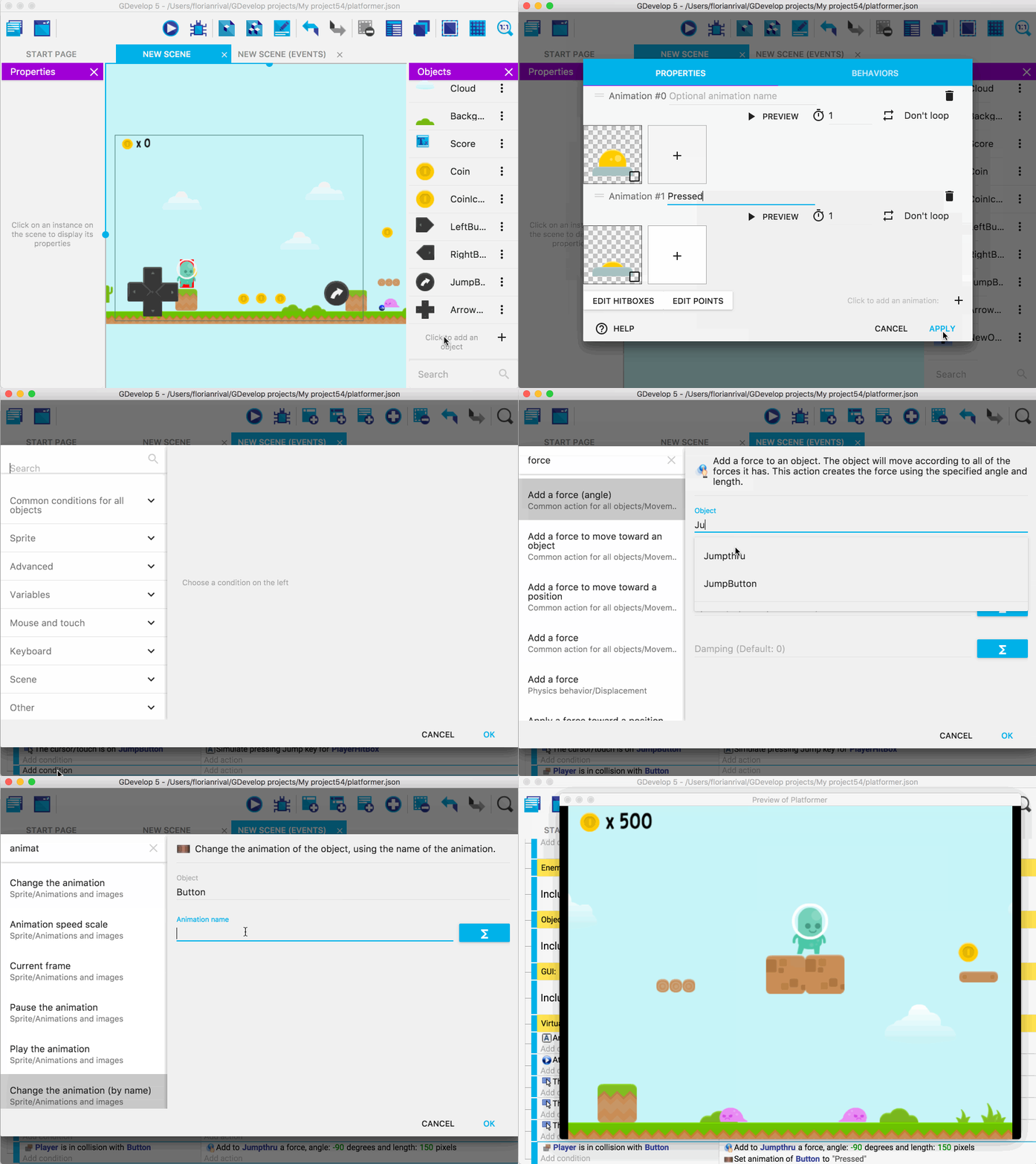
Event based system, can be extended using Javascript (HTML5 target), or C++ (Native target).
Similar Tools: Construct 2 (Free & Commercial)


Note: Basically, there are two most popular types of visual programming as scripting system in game editors - node & wire based and block based. My personal favorite is block based, more specifically, GDevelop-style. The reason is the presentation of logic in block based visual programming is "linear". Node & wire based visual programming is very flexible, but as the presentation can be non-linear ("messy"), it usually has low readability (just think the "wires" as the notorious keyword "goto"). Block based is more similar to line by line text-based structured programming, and it is easier to structure and organize, and hence usually have better readability. Scratch and blocky are too similar to text-based programming and almost have no advantages over text-based programming, so I think most programmers would not bother using them. GDevelop gives a better example of block type - the event driven, condition & action approach is very intuitive and convenient.

Others:
Goo Create (Free & Commercial)
http://goocreate.com/
Goo Create open source online WebGL game editor has a state machine visual programming system.

Sunday, February 15, 2015

CuBengine Ported to OpenFL - New Demo Rendering Voxelstein3D's Map at Full Size

Finally, I finished porting my CuBengine prototype to OpenFL, so the engine now supports more platforms instead of Flash only. Here are some screen shots from the Windows binary, showing the engine rendering the Voxelstein3D's map. Different from the old demo of the original Bengine, which is rendering a scaled Voxelstein3D's map with size 256x256x64, in this new demo, CuBengine is rendering the map with full size (1024x1024x256). This is one advantage of CuBengine over Bengine - Bengine use the raw voxel data format so it only support maximum map size of 256^3, while CuBengine can support very large voxel map with a compressed format, and the maximum size can be 65536^3, subject to hardware limits.

You can download the Win-32 build at https://drive.google.com/file/d/0B5V2PrQ8xX_ENkZsbER6b1UtY2M/view?usp=sharing

Saturday, January 24, 2015

Destructor 2015 - The Updated FPS Game Based on Bengine with Source Code

Destructor is the voxel based FPS game power by Bengine I made for the 7DFPS in 2012. Since Mochi Media was down, high score submission doesn't work any more. Recently, I finally updated the game and cleaned up the source code for a new release. This re-release comes with updated control, and on screen joystick for windows/android tablets. I also implemented high score submission using the newgrounds, kongregate and gamersafe API.

Play the game here:
http://www.newgrounds.com/portal/view/652322

Source Code (SVN, code only): https://flaswf.googlecode.com/svn/trunk/Games/Destructor/Destructor2015/

Source Code with Assets (All in one package): TO DO.

Credits:

Music: Theme Crystalized by Ove Melaa [CC-BY 3.0]: http://opengameart.org/content/theme-crystalized-orchestral-epic-scoresong
and see also http://bruce-lab.blogspot.com/2012/06/destructor-voxel-based-fps-game-power.html

Explosion effect forked from http://wonderfl.net/c/cWPq

Note: To compile the C source code to Bengine.swc, you may need the old Adobe Alchemy compiler. (You can find the backup download here.)

Tuesday, January 6, 2015

First Demo of My New Voxel Rendering Engine - CuBengine

CuBengine is the latest derivative of my voxel engine Bengine. The main difference of CuBengine and original Bengine is that CuBengine renders each voxel as a 3D cube while Bengine render each voxel as a 2D pixel square (or 3D billboard). Besides the screen representation of voxels, CuBengine also has many enhanced features over the original Bengine, such as higher resolution, less memory consumption and supporting larger level maps. Actually, CuBengine is a completely rewrite from scratch. Currently CuBengine is written in AS3 with rendering core in HaXe, but it will be soon ported to OpenFL and HaXe.

First Demo of CuBengine (Flash):
https://googledrive.com/host/0B5V2PrQ8xX_EUzI3OGt1S202TVk

Controls:
KeyBoard
WSAD - Move
Arrow Keys - Look
Ctrl - Go Down
Space - Go Up
You can also use the on screen joystick, which is designed for touch enabled devices, to replace all the keyboard controls. To hide/show the joystick, right click and then left click the menu button "◇{On Screen Joystick}".

Wednesday, December 31, 2014

RealBengine Ported to OpenFL

Quite a long time since I released the first demo of RealBengine, which is written in HaXe and based on NME. Now I ported the demo to the newest OpenFL, almost with no extra effort. The good thing is now it can compile to the HTML5 target directly, thanks to jgranick's setPixels fix for the HTML5 target: http://community.openfl.org/t/bitmapdata-setpixels-doesnt-work-in-html5/348/3

RealBengine is the candidate of the future version of my voxel render Bengine, it is based on software ray tracing and it has 6 degree of freedom.

However, there is almost no noticeable performance improvement from NME to OpenFL. The Win32 binary still runs at 10~15 FPS, Flash target is about 5 FPS, and HTML5 target is only 0~1 FPS, so lots of optimizations are needed. I'm planning to re-implement to algorithm in LIME/GLSL shaders for a speedup.

DEMO (Win32 binary):
https://drive.google.com/folderview?id=0B5V2PrQ8xX_Ed0sxQkNFM0RGLWs&usp=sharing

DEMO (HTML5):
https://googledrive.com/host/0B5V2PrQ8xX_Ec3J4VzJYcFhrUzQ
Controls:

W/S Arrow UP/Down - Move Forward/Back
Arrow Left/Right - Move Left/Right
Q/E - Move Up/Down
A/D - Look Up/Down

Sunday, November 23, 2014

Open Source and Free Voxel Editors

goxel (update on 2019/Feb/12)
http://guillaumechereau.github.io/goxel/
https://goxel.xyz (https://github.com/guillaumechereau/goxel)

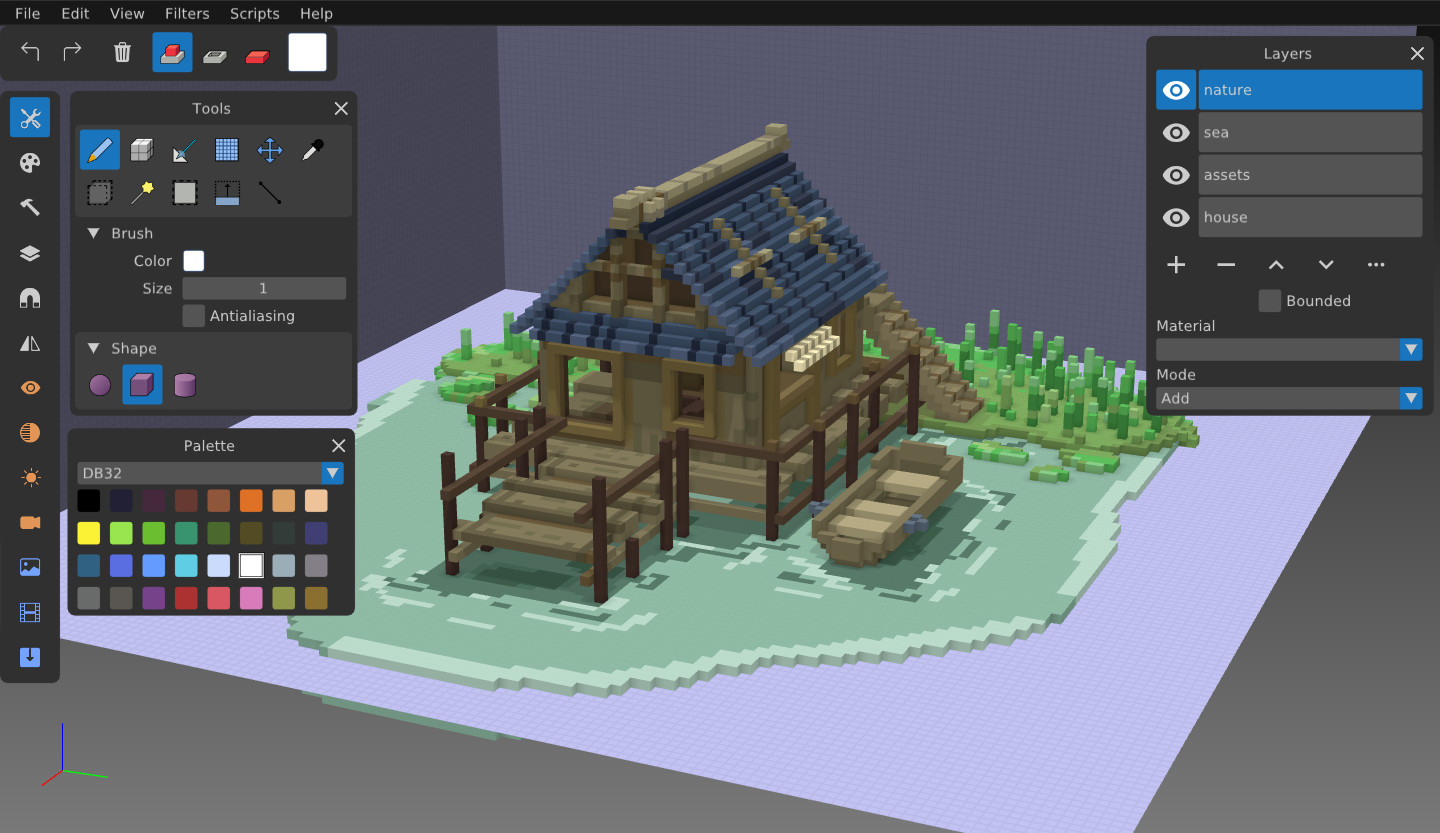
A free and open source voxel editor, available on Mac, iOS, Android, Windows and Linux. This one is currently my favorite, very simple to use and has all the basic practical functions. It also supports procedural generation (https://voxeltoy.com/). Compared with another popular software MagicaVoxel, I think this one is more suitable as a pure voxel modeling tool.

Voxlap
http://www.advsys.net/ken/voxlap.htm
Ken Silverman's open source voxlap engine. It has a real-time WYSIWYG editor - VOXED for editing the game map.
Source Code: http://www.advsys.net/ken/voxlap/voxlap05.htm
see also Ken Silverman's EVALDRAW: http://www.advsys.net/ken/download.htm#evaldraw 
and Ken Silverman's PND3D demo, an abandoned successor to the famous voxel engine Voxlap: http://advsys.net/ken/voxlap/pnd3d.htm

Strip to Voxel
http://www.moddb.com/games/black-shadow-3d/downloads/strip2vox-v3-beta
A program to convert an image strip, or series of pictures in a long film strip like image, into a raw voxel model for later editing.

Slab6 & POLY2VOX
http://www.advsys.net/ken/download.htm#slab6
An open source 6-degree of freedom viewer and editor for KVX and VOX voxel files.
The utility POLY2VOX is a polygon to voxel model converter.
See also http://forumarchive2.spadille.net/viewtopic.php?f=69&t=205&hilit=poly2vox+unlimited&sid=4c4538d139694d8d3efbc100d48f2f25 (Poly2Vox UNLIMITED, onverts textured .3DS files to voxels over size 256.)
and http://www.cs.princeton.edu/~min/binvox/ (3D mesh voxelizer).

Voxelstein3D
http://voxelstein3d.sourceforge.net/
An open source FPS game inspired by Wolfenstein 3D using Ken Silverman's VOXLAP engine to render voxels. The game package contains a animator tool for editing voxel animations.

VoxRend
http://voxrend.sourceforge.net/
Includes tools for VOX - a file format that describes an object built with voxels.
Source Code: http://voxrend.sourceforge.net/#downloads

MagicaVoxel
https://voxel.codeplex.com/
https://ephtracy.github.io/
A free lightweight 8-bit voxel editor and renderer with lots of functionalities.

Voxie
https://github.com/matpow2/voxie
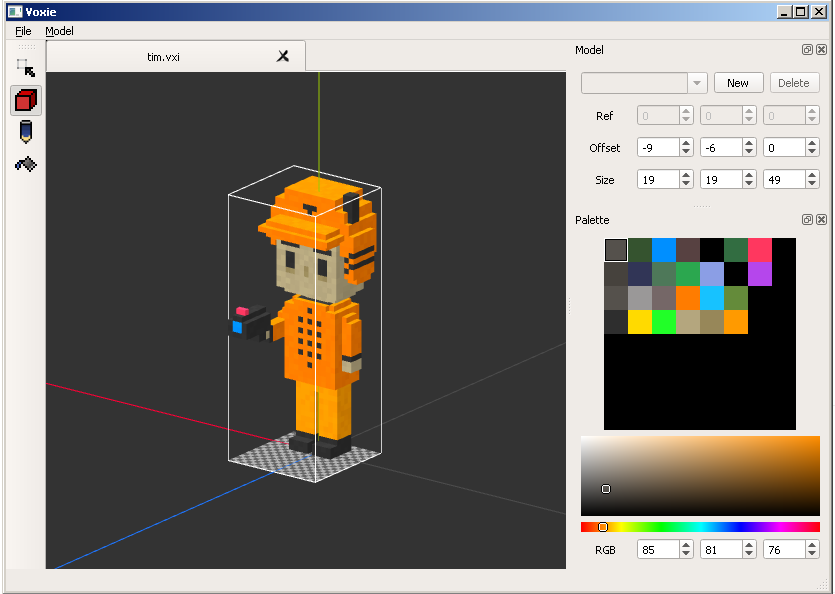
A cross-platform open-source voxel editor and tool chain that supports per-frame animation.
Source Code (MIT): https://github.com/matpow2/voxie

VoxEditor
https://www.youtube.com/watch?v=pTWenv6JrZY
A voxel editor written in C#.
Source Code: https://bitbucket.org/BamYazi/voxeditor/
Note:  This tool seems sophisticated, however, not much information can be found about it. You may need to contact the author for more details.

Sprite Voxel Editor
http://sproxel.blogspot.com/
Sproxel (short for "Sprite Voxel Editor") is a 3d interface designed to let the user quickly create and edit voxel-based 3d models. The creation process and resulting geometry can be thought of as an extension to 2d pixel art.
Source Code(New BSD): http://code.google.com/p/sproxel/


Voxel Builder
http://voxelbuilder.com/
Voxel Builder is an open source tool for http://voxeljs.com/ that lets anyone design and edit 3D voxel (cube) models easily, right in their web browser.
Source Code (BSD): https://github.com/maxogden/voxel-builder
Similar tools http://kyucon.com/qblock/ and http://mrdoob.com/projects/voxels/.

Cube Kingdom
http://cubekingdom.web.fc2.com/
http://www.indiegames.com/2009/06/freeware_app_pick_cube_kingdom.html
Cube Kingdom is an application that can be used to create 3D models out of blocks with the same size and dimension.

VoxelDesc
http://claudeb.itch.io/voxeldesc
VoxelDesc is a voxel editor driven by a command line with 2.5D graphics and powerful scripting.
Source Code (Artistic License version 2): https://github.com/felixplesoianu/voxeldesc

Zoxel
http://zoxel.blogspot.co.uk/p/about-zoxel.html
Zoxel is a voxel editor designed for small models. Like a sprite editor, but in 3D.
Source Code (GNU GPL): https://github.com/grking/zoxel

VoxelShop
http://blackflux.com/node/11
VoxelShop is an extremely intuitive and powerful software for OSX, Windows and Linux to modify and create voxel objects. It was designed from the ground up in close collaboration with artists.

SummerDawn
http://www.giawa.com/voxel-editor/
Simple voxel editor based on .NET framework.

Cube Construct
http://www.cubeconstruct.net/#&slider1=7
http://www.neuroproductions.be/experiments/cube-construct-a-3d-pixel-editor-for-ipad/
3D Pixel Editor for iPad with source code.
Source code: https://github.com/neuroprod/CubeBuilder
See also
http://www.neuroproductions.be/experiments/3d-pixel-fun/
http://www.neuroproductions.be/experiments/zbrush-modelling-in-flash/

VoxelPaint
http://www.voxelpaint.com
https://play.google.com/store/apps/details?id=net.kajos.voxelpaint.android
Painting in 3D with voxels in the cloud using WebGL or the Android app.

Hangover
http://shrinker.beyond-veils.de/projects/Hangover/
An all-3D 3D terrain editor which enables you to simply interactively draw and manipulate terrains in 3D space. Since this is not based on height fields, you can easily create steep hills, overhangs or even tunnels.

Creeperchest
http://shrinker.beyond-veils.de/projects/IterationX/Creeperchest/
A Minecraft level editor.

kv6ToSchematic
http://www.minecraftforum.net/forums/mapping-and-modding/minecraft-tools/1265323-kv6toschematic-import-3d-models-with-textures
Import kv6 format voxel to Minecraft.

Voxel Section Editor
http://www.ppmsite.com/?go=vxlseinfo
Open source voxel creation and editing tool for Command & Conquer Tiberian Sun and Command & Conquer Red Alert 2 voxel files.
See also http://www.tibed.net/voxel


RadED
https://www.youtube.com/watch?v=CZFcWtPa3BY&feature=player_embedded
RadED is an experimental voxel editor for Doom circa 1993.
Source Code: http://leeland.stores.yahoo.net/earlydoomstuff.html
See also
http://web.archive.org/web/20120317221740/http://www.jonof.id.au/forum/index.php?topic=1972.0
Note: this tool is rather old and no binary available - you need to compile for yourself.

Polygon modelling tools support sculpting (For High-Resolution realistic Voxel model creation):

Blender
http://www.blender.org
The free and open source 3D animation suite also has sculpt mode:
http://wiki.blender.org/index.php/Doc:ZH/2.6/Manual/Modeling/Meshes/Editing/Sculpt_Mode

Sculptris
http://pixologic.com/sculptris/#
Lite version of ZBrush, the ideal ground on which to get started with digital sculpting.

SculptyPaint
http://elout.home.xs4all.nl/sculptpaint/
SculptyPaint is a low polygon 3D creation tool original written for creating sculpts.

SharpConstruct
http://sourceforge.net/projects/sharp3d/
SharpConstruct is a 3D modeling program designed to let users paint depth on to polygon models in real-time. Unlike traditional modeling programs, SharpConstruct makes it easy to quickly model organic shapes.
See also http://graphics.ethz.ch/pointshop3d/ and FiberMesh (Designing Freeform Surfaces with 3D Curves) http://www-ui.is.s.u-tokyo.ac.jp/~takeo/research/fibermesh/index.html

Dilay
http://abau.org/dilay/
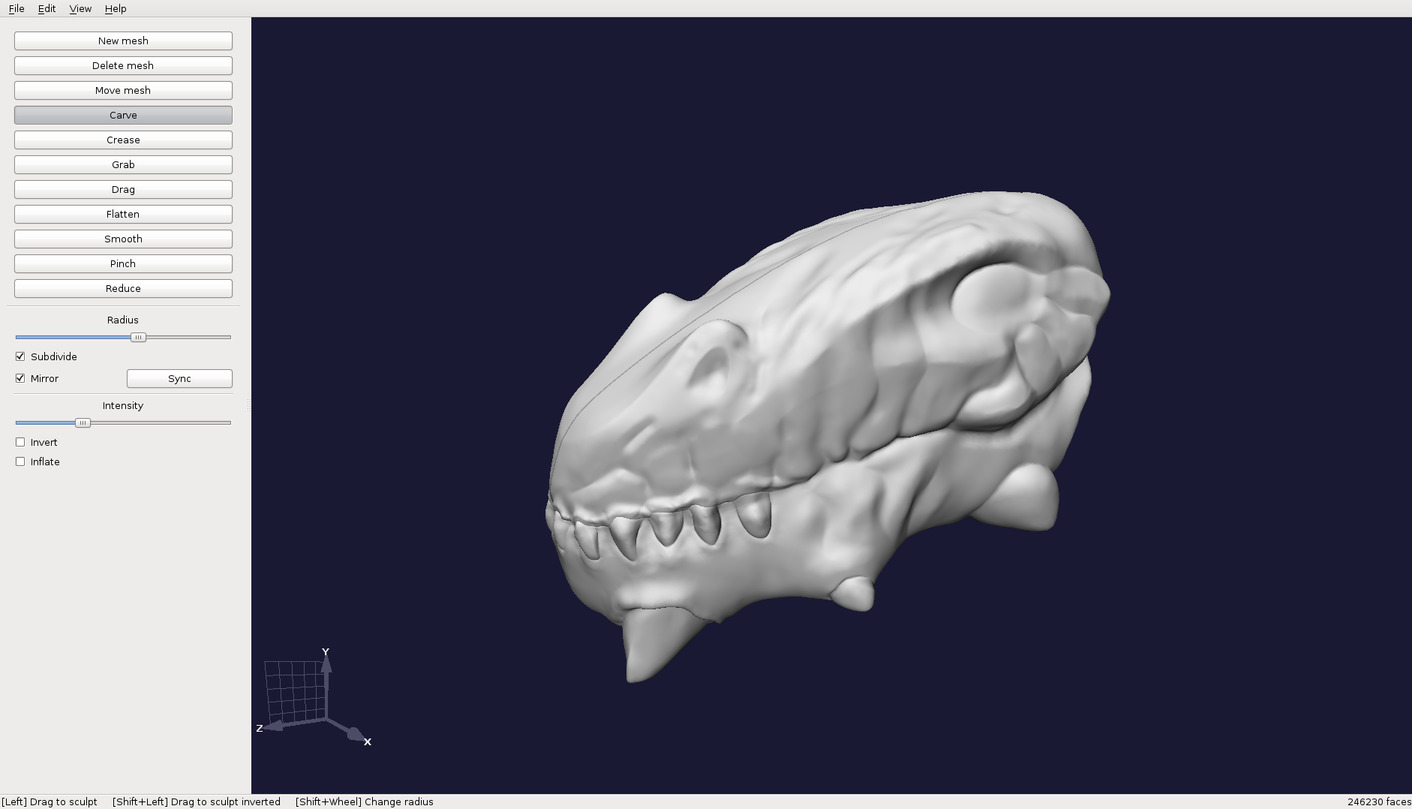
Open source (GPL) 3D sculpting application that provides an intuitive workflow for Windows and Linux.

PolyBrush
http://polybrush.org/
Small but powerful 3D editor for 3D concept art, fast modeling and sculpting. One great feature is 3D poly brushes, which makes 3D modeling like 2D drawing.

Sculpt+ (discontinued)
http://www.123dapp.com/sculptplus
Very easy to use free 3D modeling and animation tool by Autodesk. Starting from stick figures, you can sculpt the details, paint the textures and pose your models. Available for iOS, Android and Windows.

Rocket 3F
A user-friendly 3D modeling tool which supports sculpting and mesh drawing.


Others: 
Create quickly and easily your 3D head from just two 2D photos:
http://www.looxis.de/looxis-faceworx-tool/
see also http://www.123dapp.com/catch

Sketch-based shape creation & free-form modeling tool:
http://www.shapeshop3d.com
http://www-ui.is.s.u-tokyo.ac.jp/~takeo/java/smoothteddy/index.html
http://en.wikipedia.org/wiki/Sketch-based_modeling

truesculpt (Virtual sculpture for Android) https://code.google.com/p/truesculpt/
 
Mathematical models: http://k3dsurf.sourceforge.net/ 
2D/3D free generative art application: http://www.digitalpoiesis.org/

Artist3D: http://www.artist3d.de/index.htm
MeshMixer: http://www.meshmixer.com/ and http://www.123dapp.com/meshmixer
Voxel Paint in 3D with Oculus VR:
https://forums.oculus.com/viewtopic.php?f=42&t=20712

http://voxelator.com/ (Free, WebGL based)

Links:
http://www.reddit.com/r/Trove/comments/1vxs93/list_of_voxel_editors_and_useful_stuff_updated/
http://trove.wikia.com/wiki/Common_Voxel_Editors
https://bitbucket.org/volumesoffun/polyvox/wiki/Voxel%20editors
https://www.slant.co/topics/1544/~best-voxel-editors
https://alternativeto.net/software/goxel/

Sponsors